6. Render Filters and Block Styles
This is the first time you'll write PHP in the theme. You'll use the render_block filter to enhance block output on the frontend and unregister unwanted core block styles in JavaScript.
Learning Outcomes
- Know how to use the
render_blockfilter andWP_HTML_Tag_Processorto modify block output. - Understand the PHP module system (
ModuleInterface,Moduletrait) used in the scaffold. - Be able to unregister core block styles using
unregisterBlockStyle().
Context
The scaffold's src/Blocks.php already handles block registration and CSS autoenqueuing. We'll add two render filter methods to this module, and create a new JS file to clean up the editor's block style options.
Part A: PHP render filters
Walk through these step by step. This introduces the render_block filter pattern and WP_HTML_Tag_Processor.
The PHP module pattern
Before writing code, let's understand how the scaffold's PHP modules work. Every module in src/ implements ModuleInterface with three methods:
interface ModuleInterface {
    public function can_register(): bool;  // Should this module load?
    public function register();            // Hook in
    public function load_order(): int;     // Priority (lower = earlier)
}
The framework auto-discovers all classes in src/ that implement this interface. You just drop in a class and it registers itself, no manual wiring needed.
src/Blocks.php already exists and hooks into init. We'll add two new methods and register them with the render_block filter.
1. Add view-transition-name to featured images
Add a filter_featured_image_block() method to src/Blocks.php. This injects a view-transition-name style on core/post-featured-image blocks using WP_HTML_Tag_Processor:
public function filter_featured_image_block( $block_content, $block, $instance ) {
    $featured_image_id = get_post_thumbnail_id( $instance->context['postId'] );
    $p = new WP_HTML_Tag_Processor( $block_content );
    $p->next_tag();

    if ( $p->has_class( 'is-style-single-movie-backdrop' ) ) {
        return $block_content;
    }

    $style = $p->get_attribute( 'style' );
    $vt    = "view-transition-name: post-featured-image-id-{$featured_image_id};";

    if ( false === strpos( $style, $vt ) ) {
        $style = $vt . $style;
    }

    $p->set_attribute( 'style', $style );
    return $p->get_updated_html();
}
WP_HTML_Tag_Processor is WordPress's safe way to modify HTML. It parses the block's output, lets you read/modify attributes, and generates the updated HTML. It avoids the fragility of string manipulation or regex on HTML.
2. Add flex-shrink-0 to fixed-width blocks
Add a maybe_add_flex_shrink() method. This is a workaround for a Gutenberg issue #53766 where blocks with selfStretch: "fixed" don't get flex-shrink: 0:
public function maybe_add_flex_shrink( $block_content, $block, $instance ) {
    if ( isset( $block['attrs']['style']['layout']['selfStretch'] )
         && 'fixed' === $block['attrs']['style']['layout']['selfStretch'] ) {
        $tags = new WP_HTML_Tag_Processor( $block_content );
        $tags->next_tag();
        $tags->add_class( 'flex-shrink-0' );
        $block_content = $tags->get_updated_html();
    }
    return $block_content;
}
Register both filters in the register() method of Blocks.php:
add_filter( 'render_block_core/post-featured-image', [ $this, 'filter_featured_image_block' ], 10, 3 );
add_filter( 'render_block', [ $this, 'maybe_add_flex_shrink' ], 10, 3 );
The render_block_{block-name} filter targets a specific block type. The generic render_block filter runs for every block. Use the specific filter when you can to avoid unnecessary processing.
Part B: Unregistering block styles
The editor ships with default block styles (fill/outline for buttons, dots/wide for separators, etc.) that we don't need. We'll remove them to keep the editor clean.
1. Create assets/js/block-styles/index.js
import { unregisterBlockStyle } from '@wordpress/blocks';
import domReady from '@wordpress/dom-ready';

domReady(() => {
    unregisterBlockStyle('core/button', 'fill');
    unregisterBlockStyle('core/button', 'outline');
    unregisterBlockStyle('core/quote', 'default');
    unregisterBlockStyle('core/quote', 'plain');
    unregisterBlockStyle('core/quote', 'large');
    unregisterBlockStyle('core/table', 'regular');
    unregisterBlockStyle('core/table', 'stripes');
    unregisterBlockStyle('core/image', 'default');
    unregisterBlockStyle('core/image', 'rounded');
    unregisterBlockStyle('core/separator', 'default');
    unregisterBlockStyle('core/separator', 'wide');
    unregisterBlockStyle('core/separator', 'dots');
    unregisterBlockStyle('core/site-logo', 'default');
    unregisterBlockStyle('core/site-logo', 'rounded');
});
domReady ensures the block styles are registered before we try to unregister them. Without it, the unregister calls might fire too early.
We could similarly use registerBlockStyle() here as mentioned in the previous lesson (This is not necessary for our training).
import { registerBlockStyle, unregisterBlockStyle } from '@wordpress/blocks';
import domReady from '@wordpress/dom-ready';

domReady(() => {
	unregisterBlockStyle('core/button', 'fill');
	unregisterBlockStyle('core/button', 'outline');

	registerBlockStyle('core/button', {
		name: 'primary',
		label: 'Primary',
		isDefault: true,
	});

	registerBlockStyle('core/button', {
		name: 'secondary',
		label: 'Secondary',
	});
});
2. Import from the editor entry point
Add the import to assets/js/block-extensions.js:
import './block-styles';
This is the editor-only JS entry point. It's loaded via enqueue_block_editor_assets in src/Assets.php.
3. Rebuild and verify
Run npm run build. Open the editor, select a Button block, and confirm the "Fill" and "Outline" styles are gone from the Styles panel.
To sync our theme with the finished product, run these commands and then add import './block-styles'; to assets/js/block-extensions.js:
cp themes/fueled-movies/src/Blocks.php themes/10up-block-theme/src/Blocks.php
mkdir -p themes/10up-block-theme/assets/js/block-styles
cp themes/fueled-movies/assets/js/block-styles/index.js themes/10up-block-theme/assets/js/block-styles/index.js
Files changed in this lesson
| File | Change type | What changes |
|---|---|---|
src/Blocks.php | Modified | Added filter_featured_image_block() for view-transition-name; added maybe_add_flex_shrink() for fixed-width blocks |
assets/js/block-styles/index.js | New | unregisterBlockStyle() calls for button, quote, table, image, separator, site-logo |
assets/js/block-extensions.js | Modified | Added import './block-styles' |
Ship it checkpoint
- View transition names visible on featured images in DevTools
flex-shrink-0class applied to fixed-width blocks- Core block styles (fill, outline, etc.) are removed from the inspector
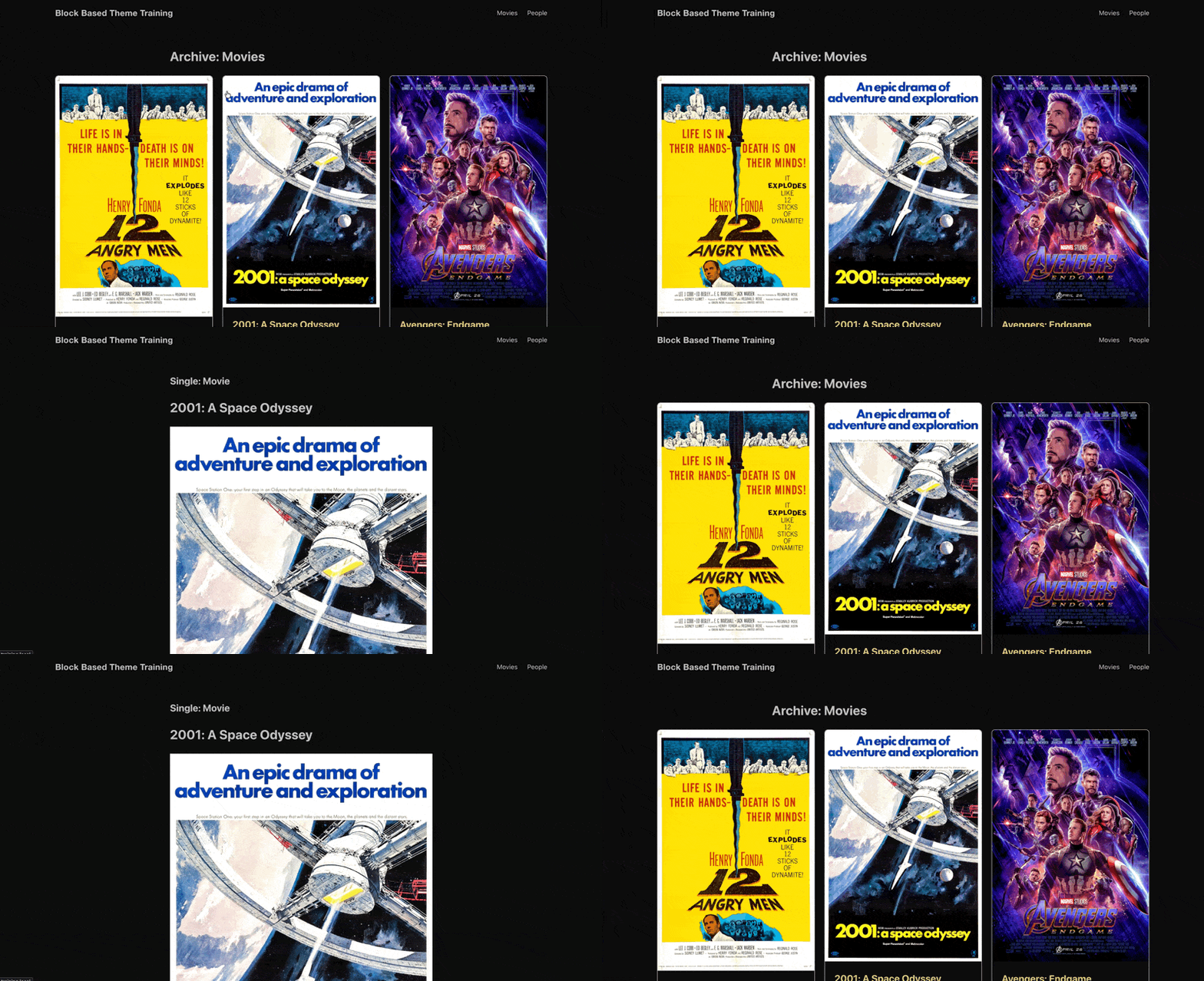 Our Featured Image view-transitions in action
Takeaways
- The
render_blockfilter lets you modify any block's HTML output on the frontend. WP_HTML_Tag_Processoris the safe way to modify block HTML. Avoid string manipulation where possible.- Use
render_block_{block-name}for targeted filters,render_blockfor broad ones. unregisterBlockStyle()+domReady()removes unwanted core block styles from the editor.- The editor-only JS entry point (
block-extensions.js) is where editor customizations live.